Laser Cutter
The laser cutter must only be operated by members who have received a detailed introduction! On the introduction page, you can find a detailed workflow from creating a DXF file to the final product.
If you need to transfer files to the PC next to the Laser Cutter, you can drop them to our Nextcloud. The files will automatically synchronize to the Laser PC and can be used further from there. Please note that files in this folder will be deleted regularly.
Safety Concerns
A laser cutter is a delicate and dangerous piece of equipment and should only run under direct supervision of a qualified user. The machine needs to be supervised even more than the 3D Printers, with the operator standing by during the entire duration of a cutting job and being in close vicinity during engraving jobs.
Although the laser beam itself should be certified laser class 1 due to the massive housing and other safety features, the fumes generated when cutting various materials can be harmful to human health (see forbidden materials). A good exhaust filtering system can take care of fumes from the allowed materials but only an outside vent will really remove the smoky smell.
Different kinds of Laser cutters
Not all Lasers are equal since they can have big differences in the way they work and what materials they can cut or engrave. One of the biggest differences is the spectrum the laser has, which impacts the ability to work with certain materials more than the raw power.

Laser source and Material
CO2 lasers
This wavelength can resonate with the carbon and oxygen bonds in material resulting in great applicability for organic materials and also clear acrylics
Fiber lasers
The biggest advantage for these lasers is their ability to engrave and even cut metals. The reason for that is not their wavelength but the method on how they deliver the energy to the material: very short pulses of high energy can vaporize the hit spot before the metal lattice has the chance to disperse the heat.
Diode lasers
Since diode lasers operate in the spectrum of visible light they only work an material that has properties interacting with the same spectrum resulting in better performance on darker material and being unable to cut or engrave transparent material.
UV lasers
Those lasers can directly break the molecular bond of the material without needing to heat it to a high temperature that would normally be necessary to achieve this resulting in being able to cut and engrave very fine or temperature sensitive materials.
Summary for materials

Motion system
There are two ways to deliver the produced laser beam to the workpiece and they also have their advantages and disadvantages. Even though the laser sources and delivery system can be mixed there is a clear trend. The dominant laser source is diode and CO2
Gantry
This is based on the normal cnc (computer numerical control) system using an acting head that moves in two axis using belts or screws powered by stepper motors. The speed can still be quite high (<1000mm/s) and the size can be quite big.
Galvanometer (Galvo)
This system uses mirrors to bounce the laser beam to the right spot enabling a vastly faster speed compared to a gantry system. The disadvantage is that the work area is pretty small and there is no way to use an air assist so they are more or less only used for engraving. The dominant laser source is UV and fiber.
Laserscript LS6090-80
| MachineInfoBox Laserscript LS6090-80 | |
|---|---|

| |
| Synonyms: | DE: Laserschneider, "Lasercutter" |
| Type: | Laser Cutter |
| Material: | wood, glass, acrylic glass, ... (list of cuttable & engravable materials; list of only engravable materials) |
| Used with: | laser exhaust system, water chiller |
| Location: | Laser Area |
| Access Requirements: | Laser Cutter Introduction |
| Status: | Working |
| Software: | Lasercut 5.3 |
| Manual: | printed copy at the machine |
| Tutors: | NitramLegov Pakue Lmnl99 Johannes Luzian Keno Utis Sebastian Björn Jaggi2 Erik MobiTobi |
General Information
- power: 80 Watt
- worktable size: 60x90 cm (length x width), engraving a bit smaller
- Z axis (height): 23 cm
- distributor: HPC Lasers
Cost
The glass tube and filters need to be replaced from time to time which will add up to several hundred €.
Therefore, an appropriate user contribution is 20 ct per minute which you should please throw into the obvious cash box immediately or in advance.
Machine Control
The machine itself is mainly operated by the control panel located on the right side of the machine:

Homing
When turning on the machine, an automatic homing is done to determine the absolute position of the laser by moving to the upper right corner of the machine. Make sure that there is nothing in it's path before homing. The machine can also be homed manually with the "Datum" button.
Moving the Laser
In order to move the laser to the starting point of your job, please ensure that you are in the main menu and no option is being highlighted. This can be achieved by pressing Esc until you see the following:

Now you can move the laser by pressing the directional buttons.
Jog Speed
In case the laser is moving too much or too little with each button press, please go to the jog set menu by using the following key combination: Menu --> ▽ --> ▽ --> ⏎
In this menu, you can set the jog distance. Please confirm the new distance by pressing ⏎.
Starting the Job
After uploading your job to the machine (see LaserCut_5.3#Uploading_your_Job for details), you can start the job by pressing "Start / Pause". The same button will also pause your job in between if needed.
Setting the Focus
In order to set the focus of the laser, please put your workpiece on the tray and use the focus finder (little 3D printed discs found in the organizer on the right): Move the bed of the laser using the green buttons ("up"/"down") until you can only barely slide the focus finder through the gab between the workpiece and the laser. Make sure not to move the bed while the focus finder is beneath the laser as accidental pressure on the laser can damage it's calibration.
The focus is set to the surface of your workpiece if you used the white standard focus finder or at the given distance when using the other ones: When machining thick material it can be helpful to set the focus inside the material (using a smaller disc) to have only small deviations on both sides rather that one strong one caused by the scattering of the laser. The thicker discs may be used for engraving because the slightly unfocused beam results in a softer image.
Troubleshooting
Laser keeps starting at the same (wrong) position
Sometimes, the starting point of the laser cutter gets set to a fixed position by accident.
While we are not yet entirely sure how this happens, here's how to fix it:
- Make sure the laser cutter is in the following condition (press
Escuntil the File name gets a grey background):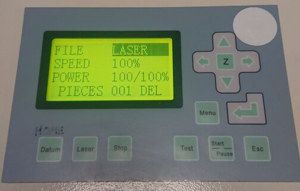
- Press
⏎so that a new menu opens - Select "CANCEL LOGIC ORG" and confirm with
⏎

And make sure the checkbox "Immediate" is checked.

Laser beeps once and does not move after pressing "Start"
You have not set any of the layers in Lasercut 5.3 to "On". Go to bed!
Rules
- supervise the entire job when cutting
- a fire can only be stopped quick enough if you open the lid immediately!
- stay in close vicinity for the entire job when engraving
- abort if you see, hear or smell anything out of the ordinary!
Forbidden Materials
- materials that contain chlorine (Cl) - it's unhealthy and also destroys the machine
- e.g. PVC ("vinyl", found in most soft plastics and records)
- artificial leather
- neoprene (including some types of Moosgummi!)
- materials that contain fluorine (F) - it can kill you and also destroys the machine
- e.g. PTFE ("Teflon") - very very unhealthy!
- epoxy resins and materials bonded with epoxy resins
→ with some materials it is not clear whether it contains Cl or F. If you are not sure, don't cut or engrave it. If you notice any unusal coloration of the smoke or flame, stop the job immediately!
Materials that don't work
- Polycarbonate (PC)
- will smoke and turn black
- Flugzeugsperrholz
- too much glue - turns very black and does not cut well
- polystyrene ("Bastelglas")
- NOT the same as acrylic glass! Cuts weld themselves shut; harmful fumes to be expected
Possible Materials (Cutting/Engraving)
Check the material settings database to see if and how something has been cut before and please add your experience as well.
In addition, you can check the official list from [Epilog].
- wood
- plywood
- Kraftplex
- particle board/chip board
- MDF and HDF are also allowed but will make frequent lens cleaning necessary due to their high glue content
- acrylic glass/Plexiglass (→ not the cheap polystyrene/Bastlerglas from hardware stores, it welds itself shut after being cut)
- cast acrylic (GS/gegossen) - "chemically better"
- very suitable for engraving because the colour changes into a milky version of the original
- extruded acrylic (XT/extrudiert) - better thickness accuracy
- very suitable for cutting
- very suitable for parts that should fit together tightly
- not as suitable for engraving because there is no colour difference
- 3D engravable, though - the grooves can be filled with paint for a nice effect
- cast acrylic (GS/gegossen) - "chemically better"
- leather, but no artificial leathers if they contain chlorine!
- paper
- colored card
- discoloration when "engraving", looks nice
- cardboard
- rubber (special kind for stamps)
- foam
- fabric
- PVC-free heat transfer materials aka "heat-transfer vinyl. For example from Sisel
- some polyurethanes depending on additives (see this study for some reference [p. 101])
When cutting wood or acrylic glass, a small flame may be observed at the focal point but is not necessarily a bad thing. However, if it burns too much or is still on when the laser beam is already somewhere else, immediately open the cover. Because the laser automatically shuts down, the fire should go out.
Possible Materials (Engraving Only)
- glass
- including mirrors (front or back!)
- stone
- some become darker, some brighter - the effect is enhanced when wet or treated with a clear finish
- metals
- all anodised and coated (be sure that the coating doesn't include forbidden materials) metals (such as aluminium an stainless steel) can be engraved upon; blank metal doesn't work
- for most metals you should use a special marking spray
- only works on blank metal, any coatings will not allow the molecular bond triggered by the laser's heat
Location Requirements
- no dust
- 5 °C ≤ room temperature ≤ 25 °C
- max. 70 % humidity
- CO2 fire extinguisher in the area
==> in the eRoom
Useful Links
see Category:Laser Cutting for many project ideas, tutorials & more!
Retailer's Information
HPC, the British company we got the Laserscript 6090 from, has some resources we should keep in mind:


